
BYD CarPlay va Android Auto — qaysi modellar (2026)
Simsiz CarPlay deyarli har bir Xitoy BYD'sida ishlaydi — mana to'liq texnik tahlil
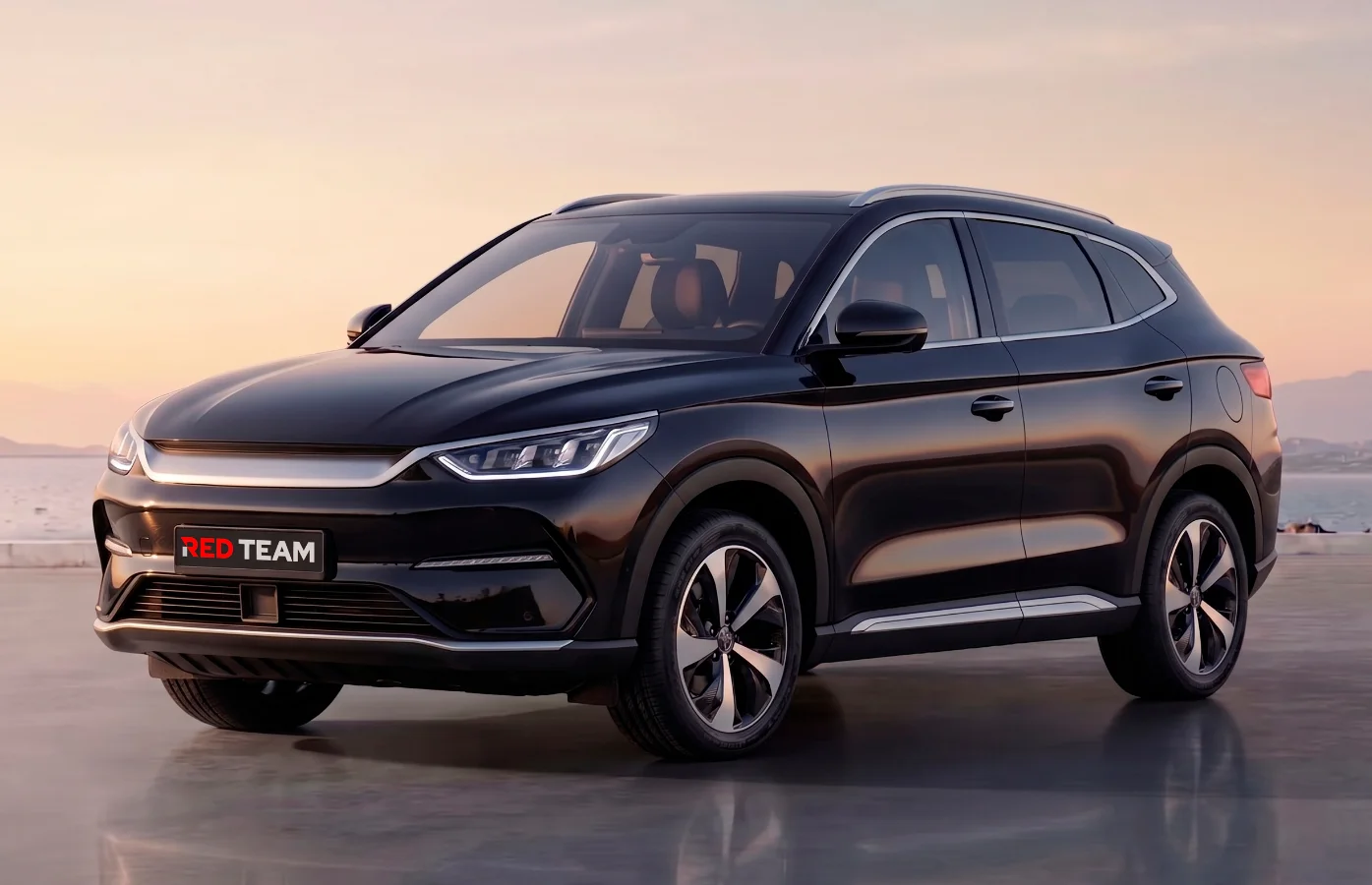
Xitoydan BYD sotib olayotganda eng ko'p beriladigan savollardan biri: «CarPlay haqiqatan ishlaydimi?» Qisqa javob — ha, ishlaydi. Lekin oldindan bilish kerak bo'lgan nozik jihatlar bor. Ushbu maqolada Xitoy bozori BYD'sida Apple CarPlay va Google Android Auto bilan bog'liq hamma narsani ko'rib chiqamiz: qaysi modellar mos keladi, simsiz yoki simli variant, smartfondan nima talab qilinadi va odatiy muammolar.
Xitoy BYD'sida CarPlay «qutidan chiqib» ishlaydimi?
Qisqa javob: **yo'q**. Zavod Xitoy BYD proshivkasi **CarPlay va Android Auto'ni bloklaydi** — Xitoy o'z ekotizimlarini (Huawei HiCar, Xiaomi CarWith, mahalliy analoglar) targ'ib qiladi. Hatto iPhone yoki Android smartfonni ulasangiz ham, hech narsa yuz bermaydi.
Bizning lokalizatsiyamizdan so'ng CarPlay va Android Auto **blokdan chiqariladi** va to'liq ishlaydi. Bu asosiy xizmatga qo'shimcha to'lovsiz kiritilgan. Yangi modellarda (Sealion, Leopard 7, Han L) ham, eski Pre-facelift 2022-2023 modellarida ham ishlaydi.
Qaysi BYD modellari simsiz CarPlay'ni qo'llab-quvvatlaydi
Simsiz CarPlay'ni to'liq qo'llab-quvvatlaydi
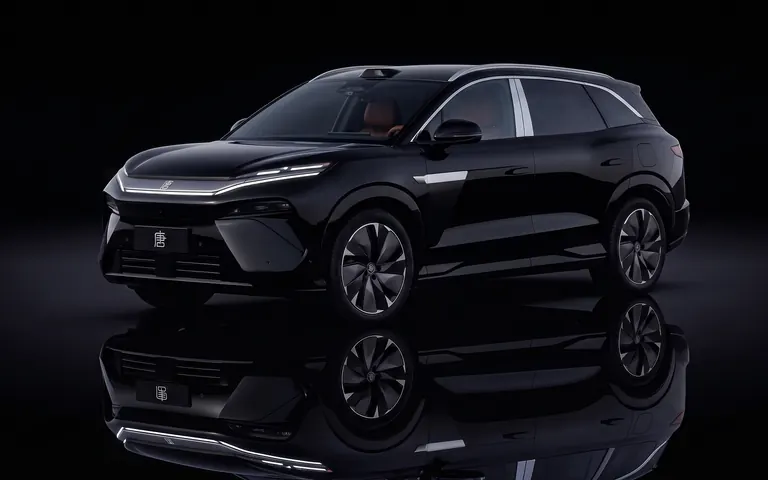
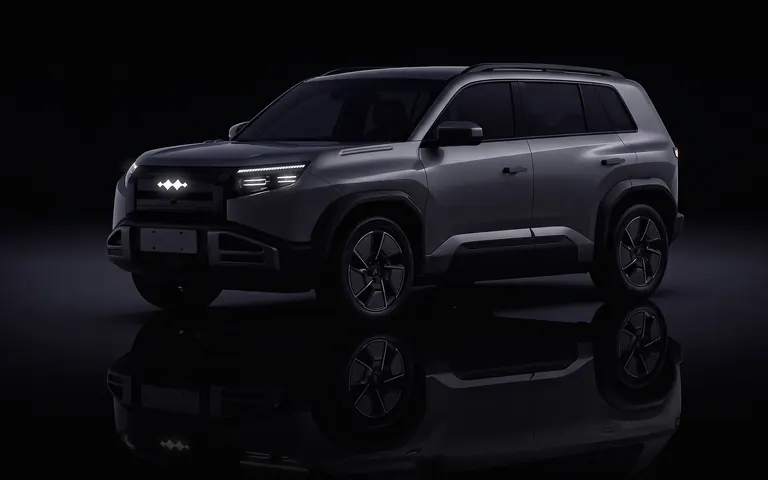
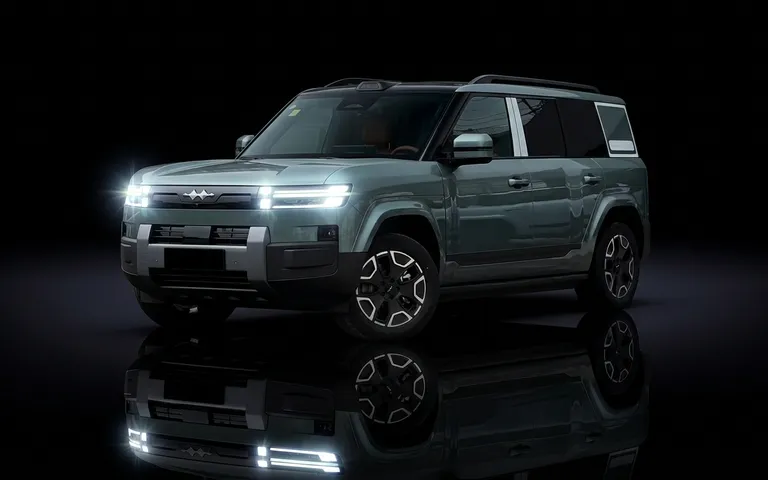
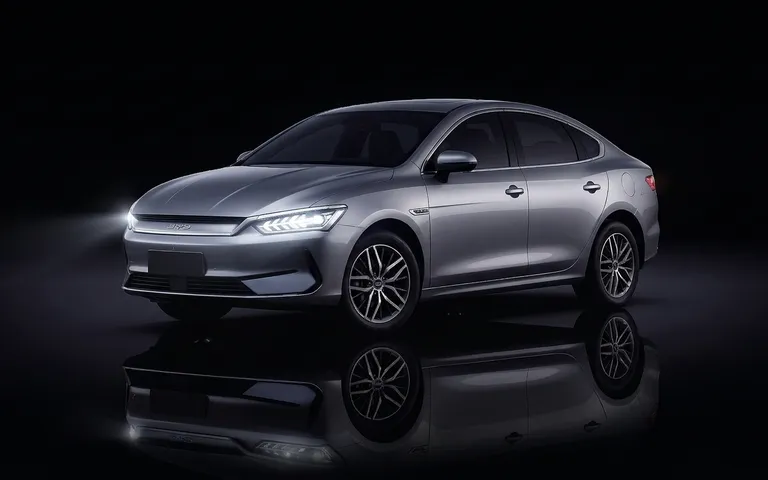
BYD Han (barcha avlodlar), BYD Han Smart / Han L, BYD Tang / Tang L, BYD Song Plus (DM-i, EV, Champion), BYD Sealion 06/07/08, BYD Leopard 3/5/7, BYD Yuan Plus / Atto 3, BYD Seal — bu modellarning barchasi bizning faollashtirishimizdan so'ng simsiz CarPlay va Android Auto bilan ishlaydi.
Faqat simli
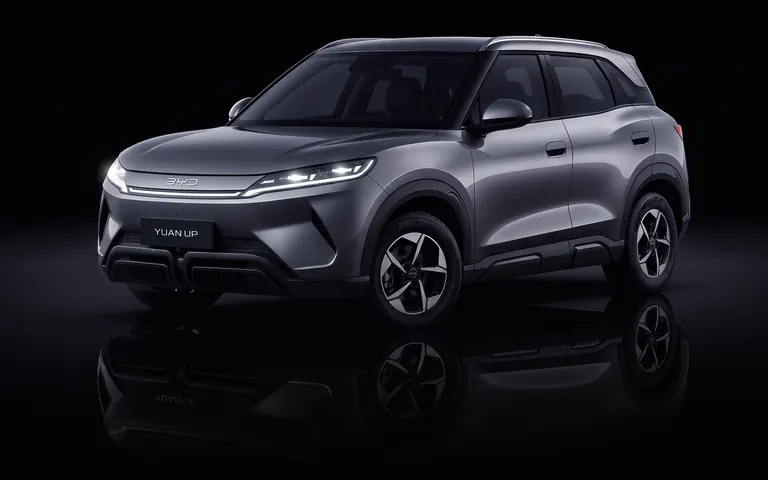
Erta BYD Dolphin (2022-2023) va ba'zi Yuan Up modifikatsiyalari USB orqali jismoniy ulanishni talab qiladi. Biz baribir CarPlay'ni yoqamiz, lekin uning ishlashi uchun Lightning yoki USB-C kabeli kerak bo'ladi.
Mavjud modellar BYD
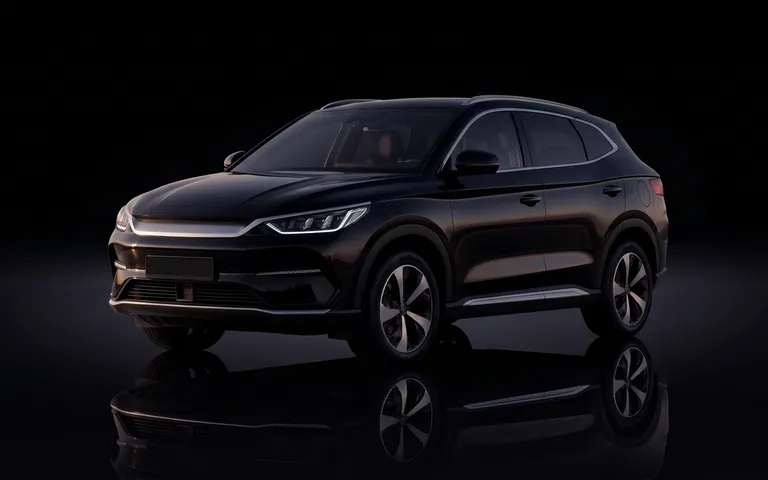
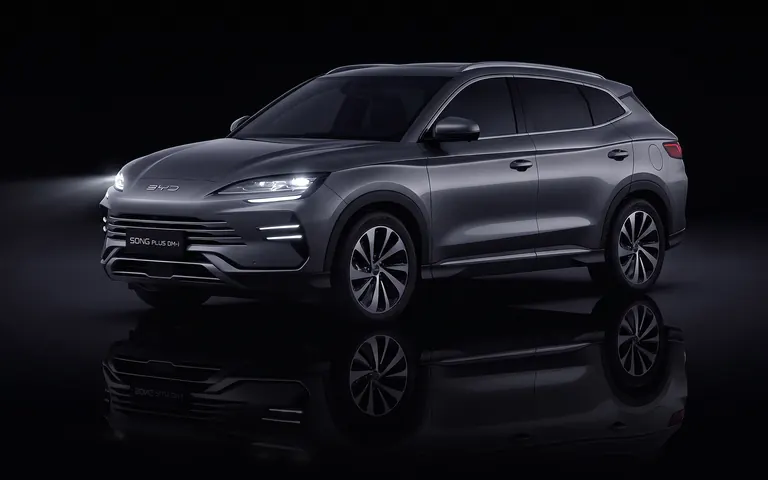
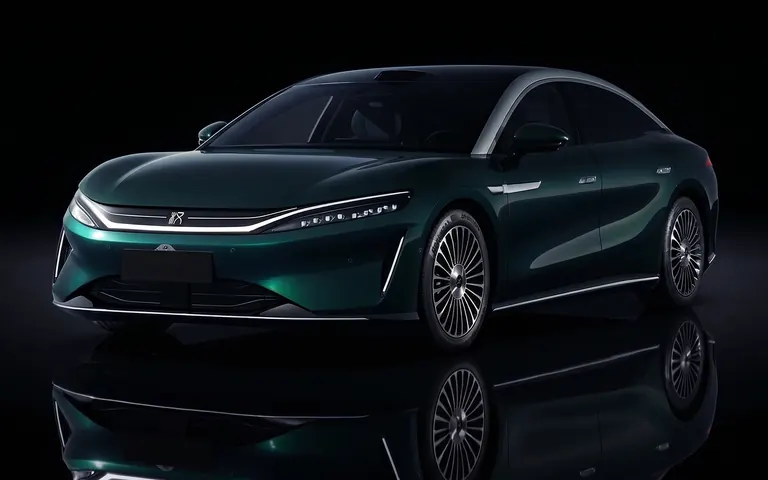
Smartfonga qo'yiladigan talablar
iPhone
Simsiz CarPlay uchun: iPhone 8 yoki undan yangi, iOS 13 yoki undan yuqori. iPhone 12 va undan yangi modellarda eng yaxshi ishlaydi (barqaror simsiz ulanish uchun yaxshilangan Wi-Fi chipi). Simli CarPlay istalgan iPhone 5 yoki undan yangi model bilan ishlaydi.
Android
Simsiz Android Auto uchun: Android 11 yoki undan yuqori operatsion tizimli smartfon, 5 GHz Wi-Fi (Android Auto Wireless 2.4 GHz'da ishlamaydi). Samsung Galaxy, Xiaomi, Pixel flagmanlari — muammosiz ishlaydi. Simli Android Auto — Android 6.0+ talab qilinadi.
Birinchi ulanish — bosqichma-bosqich
iPhone uchun
1-qadam: iPhone'da Bluetooth va Wi-Fi'ni yoqing. 2-qadam: Bosh qurilmada «Sozlamalar → CarPlay» bo'limini oching va «Qurilma qo'shish»ni tanlang. 3-qadam: iPhone'da tasdiqlash so'rovi paydo bo'ladi — rozilik bering. 4-qadam: Wi-Fi Direct avtomatik ulanadi, CarPlay ochiladi. Keyingi safarlarda mashinaga o'tirishingiz bilan iPhone avtomatik ulanadi.
Android uchun
1-qadam: Android Auto ilovasini o'rnating (odatda oldindan o'rnatilgan). 2-qadam: Bosh qurilmada «Sozlamalar → Android Auto» bo'limini oching va juftlash rejimini yoqing. 3-qadam: Android'da Bluetooth sozlamalarini oching va BYD bosh qurilmasini toping. 4-qadam: Bluetooth orqali juftlashdan so'ng Wi-Fi Direct avtomatik ulanadi.
Odatiy muammolar va yechimlar
CarPlay avtomatik ulanmayapti
Odatda iPhone saqlangan ulanishni unutgan bo'ladi (masalan, iOS yangilanishidan so'ng). Yechim: mashinani «Sozlamalar → Asosiy → CarPlay»dan o'chiring va qaytadan ulaning. 2 daqiqa vaqt oladi.
Android Auto ulanadi, lekin ovoz yo'q
Birinchi ulanishdagi klassik muammo. Yechim: bosh qurilma sozlamalarida «Audio manba» bo'limini toping va Android Auto'ni Bluetooth media manbasi sifatida tanlang. Shuningdek, Power tugmasini 10 soniya bosib turib bosh qurilmani qayta yuklash ham yordam beradi.
CarPlay ishdan chiqadi yoki qotib qoladi
Odatda sabab — iPhone bilan bosh qurilma o'rtasidagi zaif Wi-Fi signali. iPhone mashinadan uzoqda, sumkada emasligini tekshiring. Shuningdek, CarPlay'dan foydalanish paytida iPhone'da Personal Hotspot'ni o'chiring — ular bir-biriga xalaqit beradi.
BYD'da CarPlay orqali nima qilish mumkin
Bizning faollashtirishimizdan so'ng barcha BYD modellarida CarPlay'ning to'liq funksiyalar to'plami mavjud: CarPlay orqali Google Maps, Waze, Yandex Navigator, YouTube Music, Spotify, Apple Music, istalgan podkast va audiokitoblar, WhatsApp, Telegram, iMessage — ovozli o'qish va javoblarni aytib yozdirish bilan, ovozli boshqaruv uchun Siri, kalendar va eslatmalar.
Android Auto shunga o'xshash to'plamni beradi: Google Maps, Waze, istalgan uchinchi tomon navigatorlari, YouTube Music, Spotify, istalgan Android media ilovalari, WhatsApp, Telegram — ovozli o'qish va aytib yozdirish bilan, ovozli boshqaruv uchun Google Assistant, Google kalendari.
CarPlay vs BYD'ning o'rnatilgan tizimi — qaysi birini ishlatish kerak?
Bizning maslahatimiz: navigatsiya uchun CarPlay'dan foydalaning (Google Maps yoki Waze — ko'pchilik hududlar uchun aniqroq va BYD'ning o'rnatilgan navigatsiyasiga qaraganda tez-tez yangilanadi). Musiqa uchun — qaysi biri qulay bo'lsa: CarPlay orqali Spotify ham, o'rnatilgan media pleyer ham bir xil darajada yaxshi ishlaydi. Qo'ng'iroqlar uchun — CarPlay qulayroq, chunki u iPhone kontaktlari va qo'ng'iroqlar tarixi bilan integratsiyalashgan.
O'rnatilgan lokalizatsiyalangan BYD tizimi telefonsiz ishlashi bilan yaxshi — iqlim, harakat rejimlari, ADAS sozlamalari, servis funksiyalari. Bularni CarPlay orqali boshqarib bo'lmaydi, shuning uchun ikkala tizim bir-birini to'ldiradi.
Tez-tez so'raladigan savollar
BYD'da Android Auto bormi?
Ha. 2023-yildan beri sotilgan har bir Xitoy bozori BYD'si simsiz Android Auto uchun apparat qo'llab-quvvatlashiga ega — jumladan Atto 3, Dolphin, Seal, Han, Sealion 06/07, Song Plus va flagman Han L. Faollashtirish — biz til o'zgartirish xizmati davomida bajaradigan dasturiy qadam; konnektor allaqachon bosh qurilmada mavjud.
BYD'da CarPlay bormi?
Ha — o'sha modellarda simsiz CarPlay. Xitoy bozori proshivkasi standart holatda CarPlay o'chirilgan holda yetkaziladi, chunki ichki bozorda uning o'rniga BYD DiLink ishlatiladi. Biz uni ECU'ga tegmasdan multimedia konteynerida blokdan chiqaramiz. iPhone 8 va undan yangi modellar mos keladi.
BYD'imda Android Auto'ni qanday yangilayman?
Android Auto'ning o'zi telefoningizdagi Google Play Store orqali avtomatik yangilanadi — bosh qurilma faqat telefoningizda ishlab turgan narsani aks ettiradi. Agar telefon yangilanishidan so'ng ulanish ishlamay qolsa, bosh qurilmani qayta yuklang (Power tugmasini uzoq bosing) va qaytadan ulaning. Agar bosh qurilma proshivkasining o'zini yangilash kerak bo'lsa — bu alohida xizmat, biz butun BYD qatori uchun proshivka yangilashlarini bajaramiz.
Simsiz CarPlay barcha BYD'larda ishlaydimi?
Ko'pchilik zamonaviy modellarda — ha. Han, Tang, Song Plus, Sealion, Leopard 3/5/7, Yuan Plus, Seal — barchasi bizning faollashtirishimizdan so'ng simsiz CarPlay'ni qo'llab-quvvatlaydi. Faqat erta Dolphin (2022-2023) va ba'zi Yuan Up'ga kabel kerak.
BYD uchun CarPlay adapteri kerakmi?
Yo'q. Biz lokalizatsiya jarayonida CarPlay'ni dasturiy ravishda blokdan chiqaramiz. Hech qanday qo'shimcha adapterlar (Carlinkit kabi) kerak emas.
Android Auto 2.4 GHz Wi-Fi orqali ishlaydimi?
Yo'q. Android Auto Wireless 5 GHz Wi-Fi talab qiladi. Agar smartfoningizda eski Wi-Fi chipi bo'lsa, faqat simli ulanish ishlaydi.
CarPlay va BYD'ning o'rnatilgan navigatsiyasini bir vaqtda ishlatsa bo'ladimi?
Bir ekranda bir vaqtning o'zida emas. Lekin ikkala tizimning funksiyalaridan kerak bo'lganda foydalanish uchun CarPlay va BYD'ning tabiiy interfeysi o'rtasida bir teginishda almashish mumkin.
CarPlay ishlagan, keyin to'xtagan bo'lsa nima qilish kerak?
1) Mashinani iPhone sozlamalaridan o'chiring va qaytadan ulaning. 2) Bosh qurilmani qayta yuklang (Power 10 soniya). 3) iOS yangilanganini tekshiring. Agar yordam bermasa — bizga yozing, masofadan yordam beramiz.
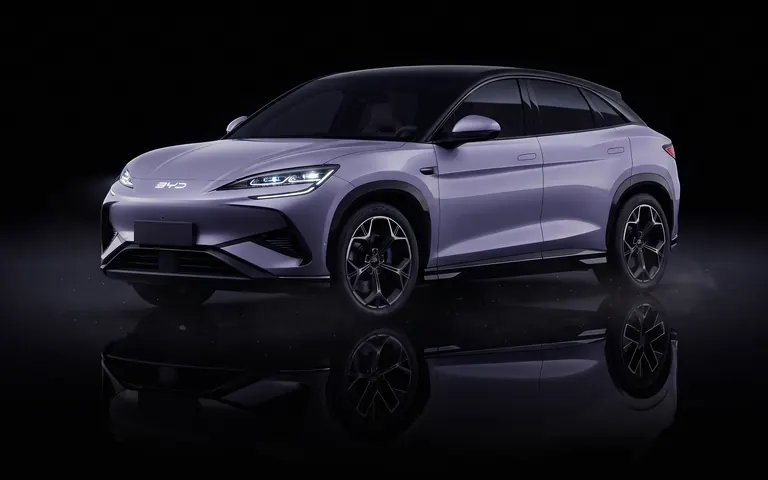
Biz lokalizatsiya qiladigan modellar
Avtomobilingizni lokalizatsiya qilishga tayyormisiz?
Biz bilan bog'laning — 15 daqiqa ichida javob beramiz.